Stealthy for Chrome
Please note that these instructions for installing Stealthy on Google Chrome can also be applied to Brave, Microsoft Edge and Opera browsers. Simply make sure to use the appropriate installation URL for your preferred browser
Installation
- Go to the installation page by clicking here for Chrome/Brave or here for Edge or here for Opera.
- In the upper right-hand corner of the page, press the "Add to Chrome" button:

- You will see a message regarding the permissions Stealthy needs to function. For your peace of mind, a certificate from a reputable third-party guarantees that Stealthy for Chrome is 100% clean "Softpedia guarantees that Stealthy for Chrome is 100% Clean, which means it does not contain any form of malware, including but not limited to: spyware, viruses, trojans and backdoors."
- Press "Add Extension" to quickly install Stealthy.
- Once installed, you'll see a red icon in the right-hand corner of your browser. Press it
to turn on Stealthy:

- When Stealthy is ready and enabled, the icon will turn green.

- You can turn Stealthy off by clicking on the icon when you no longer need it.
Additional configuration
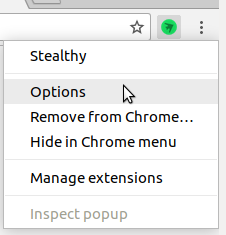
- To access the configuration page, right-click on the Stealthy icon and select "Options."
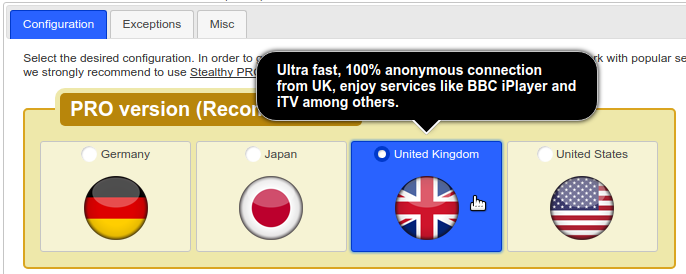
- The first set of options is the most important, in order to have an ultra-fast fast,
reliable,
anonymous, secure connection, guaranteed to
work with popular services you need to use one of the PRO options, subscription
required, get a free trial here.
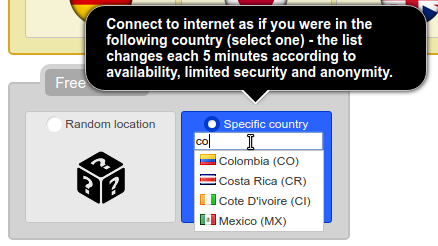
- The other two options are not as effective and fast, but totally free, choose the appropriate for you, by default you have the "random" choice, used if you want to fake your location to access services that are blocked where you are but available everywhere else (e.g. YouTube in Germany).
- If the service that you want is specific to some other country the last option is the
way to
go, and you
must provide the country name, as you
type a list of available countries will appear, just select the desired one, if is not
on
the list
just try again later, this list changes each 5 minutes according to availability.
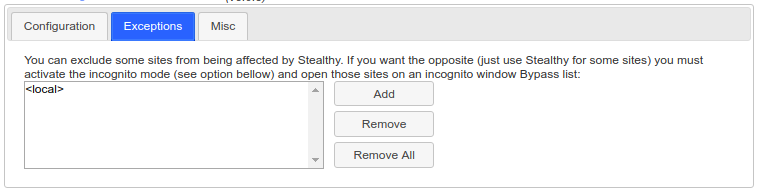
- On the "Exceptions" tab, you can create a list of websites that will not be affected by
Stealthy. URLs added to this list will be accessed normally, as if the extension is not
installed.
- On the "Misc" tab, you'll find the "Incognito Only" option. If selected, Stealthy will
only apply the proxy settings to incognito windows.
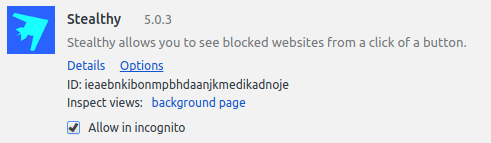
To use this option, go to the extensions manager page
(chrome://extensions/?id=ieaebnkibonmpbhdaanjkmedikadnoje), find Stealthy, and check the
"Allow in incognito" box.
- You also have the option to automatically turn Stealthy on when you start Chrome.
- Remember to scroll down and press "Save" after making any changes.